

Converting PDF files to Excel is a common task for many professionals. However, the process can be challenging, often resulting in data loss or formatting issues.
Accurate conversion is crucial for businesses and individuals who rely on data analysis and reporting. In this article, we will explore the best practices for converting PDF files to Excel spreadsheets without compromising data integrity.
PDF to Excel Conversion
Understanding the challenges associated with PDF to Excel conversion is essential to finding the right solution. By identifying the potential pitfalls, you can take steps to ensure a seamless conversion process.
Key Takeaways
- Understand the challenges of converting PDF files to Excel.
- Learn the best practices for accurate conversion.
- Discover tools and methods to minimize data loss.
- Improve your data analysis and reporting capabilities.
- Enhance your productivity by streamlining the conversion process.
Understanding the Challenges of PDF to Excel Conversion
Converting PDF to Excel can be a daunting task due to various technical challenges. The complexity arises from the inherent differences between the two file formats. PDFs are primarily designed for viewing and printing, while Excel files are meant for data manipulation and analysis.
Why PDF to Excel Conversion Can Be Difficult
The difficulty in converting PDF to Excel stems from the loss of structural information during the conversion process. PDFs lack the tabular structure that Excel files have, making it challenging to accurately translate the data.
Common Data Loss Issues During Conversion
Some common issues that lead to data loss during conversion include:
- Table formatting being lost or distorted
- Text being misplaced or not recognized correctly
- Loss of formulas and functions
- Images and special characters not being properly handled
The Importance of Preserving Formatting and Formulas
Preserving the original formatting and formulas is crucial for maintaining data integrity. Formulas are essential for calculations and data analysis in Excel. Losing them can render the spreadsheet useless.
To mitigate these issues, it’s essential to understand the conversion process and use the right tools. By doing so, you can minimize data loss and ensure that your Excel files are accurate and usable.
Preparing Your PDF for Optimal Conversion

A well-prepared PDF is the foundation of a successful conversion to Excel. Proper preparation ensures that your data is accurately transferred and formatted correctly in the resulting Excel file.
Checking PDF Quality and Structure
The quality and structure of your PDF significantly impact the conversion process. Ensure that your PDF is clear and legible, with properly formatted tables and text. Check for any distortions or blurriness that could affect the conversion accuracy.
PDF quality check
Organizing Your PDF Data Before Conversion
Organizing your PDF data before conversion is crucial. Use clear headings and labels for your tables and data sections. This step helps conversion tools accurately identify and transfer data to Excel.
Creating Backup Files to Prevent Data Loss
Before initiating the conversion, create a backup of your original PDF. This precautionary step ensures that you can recover your data in case something goes wrong during the conversion process.
By following these steps, you can significantly improve the chances of a successful PDF to Excel conversion, minimizing the risk of data loss and formatting issues.
Best Methods to Convert PDF to Excel Without Data Loss
With the increasing need for data manipulation, converting PDF to Excel has become a necessity. Various methods can achieve this conversion efficiently, minimizing data loss and preserving the original formatting.
Using Adobe Acrobat Reader DC
Adobe Acrobat Reader DC is a widely used tool that can convert PDF files to Excel format. Its robust features ensure that the conversion process is relatively straightforward.
Step-by-Step Adobe Conversion Process
To convert a PDF to Excel using Adobe Acrobat Reader DC, follow these steps:
- Open your PDF file in Adobe Acrobat Reader DC.
- Click on “Export PDF” in the right-hand pane.
- Select “Spreadsheet” as the export format and choose “Microsoft Excel Workbook.”
- Click “Export” and select the destination folder.
Adjusting Settings for Better Results
For better conversion results, you can adjust the settings in Adobe Acrobat Reader DC. Ensure that the PDF file is of high quality and that the export settings are configured to preserve the original formatting.
Microsoft Excel’s Built-in PDF Import Feature
Microsoft Excel has a built-in feature that allows users to import PDF files directly into Excel. This feature is convenient and can handle complex tables.
Detailed Excel Import Instructions
To import a PDF into Excel, follow these steps:
- Open Excel and go to the “Data” tab.
- Click on “From Text/CSV” and then select your PDF file.
- Excel will guide you through the import process, allowing you to customize how the data is imported.
Handling Complex Tables in Excel
When dealing with complex tables, Excel’s import feature can sometimes struggle to maintain the original structure. In such cases, manually adjusting the table layout after import can help.
Google Drive Conversion Method
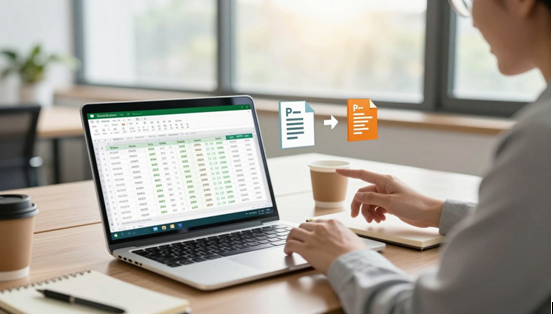
Google Drive offers a simple way to convert PDF files to Google Sheets, which can then be exported to Excel format.
To use Google Drive for PDF conversion:
- Upload your PDF file to Google Drive.
- Right-click on the PDF file and select “Open with Google Docs.”
- Google Docs will convert the PDF to a editable format, which you can then copy into Google Sheets.
Here’s a comparison of the methods discussed:
| Method | Ease of Use | Data Loss | Formatting Preservation |
| Adobe Acrobat Reader DC | Easy | Low | High |
| Microsoft Excel’s Built-in Feature | Moderate | Moderate | Moderate |
| Google Drive Conversion | Easy | Moderate | Low |
PDF to Excel Conversion Methods
Premium Software Solutions for Perfect PDF Conversion
The quest for perfect PDF to Excel conversion leads many to premium software solutions, which promise advanced features and higher accuracy. These tools are designed to handle complex PDF documents, ensuring that the conversion process preserves the original formatting and data.
Adobe Acrobat Pro DC Features and Process
Adobe Acrobat Pro DC is a leading solution for PDF conversion, offering advanced features such as OCR (Optical Character Recognition) and the ability to export PDFs to various formats, including Excel. Its process involves opening the PDF, selecting the export tool, and choosing the desired format.
According to Adobe, “With Acrobat Pro DC, you can convert PDF files to editable formats like Microsoft Excel, making it easier to reuse the content.”
“The accuracy of Adobe Acrobat Pro DC in converting complex PDFs is unmatched,” says a satisfied user.
Nitro PDF Pro Conversion Capabilities
Nitro PDF Pro is another powerful tool that offers advanced conversion capabilities, including the ability to convert PDFs to Excel with high accuracy. It also features a user-friendly interface that simplifies the conversion process.
Wondershare PDFelement Advanced Options
Wondershare PDFelement provides a range of advanced options for PDF conversion, including batch conversion and the ability to edit PDFs before conversion. It’s particularly useful for users dealing with large volumes of PDF documents.
Comparing Accuracy and Formatting Retention
When comparing these premium software solutions, accuracy and formatting retention are key factors. The following table summarizes the main differences:
| Software | Accuracy | Formatting Retention |
| Adobe Acrobat Pro DC | High | Excellent |
| Nitro PDF Pro | High | Very Good |
| Wondershare PDFelement | Very High | Excellent |
As shown in the table, all three software solutions offer high accuracy and good formatting retention, making them suitable for converting PDFs to Excel. The choice ultimately depends on the specific needs of the user.
Online Tools and Troubleshooting Common Conversion Problems
PDF to Excel conversion is made effortless with the help of various online tools and troubleshooting techniques. Online conversion tools have become increasingly popular due to their convenience and accessibility.
Top Online Conversion Tools
Several online tools stand out for their efficiency in converting PDF to Excel. Convertpdf and PDF2Excel Online are two such platforms that offer reliable conversion services.
Smallpdf and PDF2Excel Online
Smallpdf is known for its user-friendly interface and high conversion accuracy. PDF2Excel Online, on the other hand, offers a straightforward conversion process without the need for software downloads.
Security Considerations for Online Conversion
When using online conversion tools, it’s crucial to consider security. Look for platforms that use SSL encryption to protect your data. Always review the tool’s privacy policy to understand how your files are handled.
Fixing Misaligned Columns and Rows
One common issue during PDF to Excel conversion is misaligned columns and rows. To fix this, you can manually adjust the column widths in Excel or use the “Text to Columns” feature.
| Issue | Solution |
| Misaligned Columns | Adjust column widths or use “Text to Columns.” |
| Lost Formulas | Reconstruct formulas manually or use Excel’s formula auditing tools |
| Images and Special Characters | Use Excel’s image handling features or convert images to text using OCR tools |
Recovering Lost Formulas and Functions
Lost formulas can be recovered by reconstructing them manually or using Excel’s formula auditing tools. It’s also a good practice to check the original PDF for any hidden formulas.
Dealing with Images and Special Characters
Images and special characters can be challenging during conversion. Excel’s image handling features can help, or you can use OCR tools to convert images to text.
Conclusion
Converting PDF to Excel can be a daunting task, but with the right approach and tools, data loss can be minimized. Careful preparation of your PDF file is crucial for a successful conversion.
By understanding the challenges of PDF-to-Excel conversion, such as formatting issues and data loss, you can take steps to mitigate them. Preparing your PDF by checking its quality, organizing data, and creating backup files can significantly improve the conversion process.
Utilizing the right tools, such as Adobe Acrobat Pro DC, Nitro PDF Pro, or online conversion tools, can help you achieve accurate Excel conversion. These tools offer advanced features that preserve formatting and retain data integrity.
To convert PDF to Excel efficiently, it’s essential to choose the best method for your specific needs. Whether you opt for premium software or online tools, being aware of the potential pitfalls and taking steps to avoid them will ensure a smooth conversion process.
By following the guidelines outlined in this article, you can successfully convert your PDF files to Excel, maintaining data accuracy and formatting. Effective PDF to Excel conversion is now within your reach, enabling you to work with your data in Excel without compromising its integrity.