

In today’s digital world, videos have become one of the best sources for capturing and preserving moments. You can easily save your videos on various storage devices, including SD cards used in cameras, smartphones, drones, and other devices. However, sometimes you may encounter corruption issues when your video files get corrupted on an SD card. Such corruption usually occurs due to physical damage, improper ejection, formatting errors, or system glitches.
If your videos are not playing from your SD card or you are getting errors like “file format not supported”, “cannot play video”, or “video file is damaged”, don’t worry. Fortunately, there are several video repairing methods available that you can try to repair and recover your videos easily. In this guide, we’ll explore why videos get corrupted, how to repair corrupted video files from an SD card, and how to prevent future corruption.
Understanding Common Reasons for Video Corruption
Before getting started with video repair, it’s essential to understand the exact reason for your video corruption. Whether the problem is with the video header, codecs, metadata, or damaged structure, identifying the root cause is the first step toward successful repair. These reasons may include:
- Sudden Removal of SD Card: If you remove the SD card while transferring or saving files, this can interrupt the write process and corrupt or sometimes delete video files saved on the SD card.
- Virus or Malware Attacks: Malicious programs can infect your SD card, damaging or deleting all files saved on it, including your videos.
- File System Errors: SD cards have a FAT32 or exFAT file system. If the file system gets corrupted, all stored videos may become inaccessible.
- Bad Sectors: With continuous usage over time, your SD card gets corrupted, and the video files stored in these sectors might become unreadable.
- Improper Formatting: Formatting the SD card incorrectly or using it in incompatible devices may cause data corruption.
Preliminary Step: Backup Your SD Card
Creating a backup or cloning your SD card ensures that even if something goes wrong during the repair process, you’ll have a copy of your original files. To create backup:
- Connect your SD card to your computer using a card reader.
- Copy all your important files to a safe and secure location on your computer.
- If the files are unreadable, use data recovery software to extract them.
How do I Repair Corrupted Videos from SD Card?
In this section, we’ll explore different methods, including both manual fixes and software-based approaches that can help you repair corrupted videos. Let’s get started:
Method 01: Try Playing Videos in Different Media Player
It may be the problem with your video file which prevents it from playing on your video player. Windows OS provides an in-built VLC player, which is a versatile tool to play and repair your video files of different file formats. To repair your videos using VLC media player:
- Firstly, launch the VLC player on your device.
- Go to Media > Open File.
- Select the corrupted video file that you need to play.
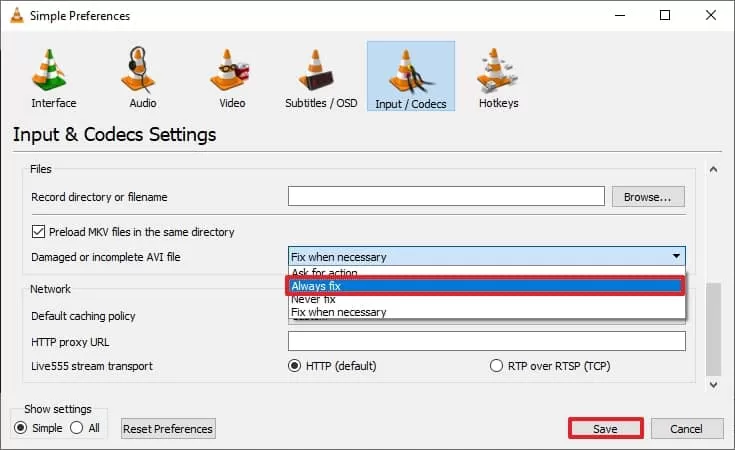
- If it doesn’t play, go to Tools > Preferences > Input/Codecs.
- Scroll down to the Damaged or incomplete AVI file section.
- Select Always Fix from the dropdown, then click Save.
Method 02: Convert the Video File Format
If corruption in your video is due to codec incompatibility or partial encoding, then changing its file format might fix the issue. You can use VLC player or any online converter to change the file format of your corrupt video.
Steps to change video format using VLC:
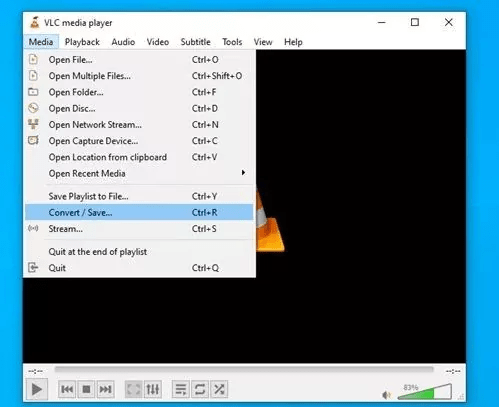
- Launch VLC player, go to Media > Convert/Save.
- Upload your corrupted video file, then again click Convert/Save.
- Choose a different file format for your video (like MP4 or MOV).
- Click Start and wait till the process completes.
The conversion process might fix header inconsistencies and make the video playable again.
Method 03: Use Command Prompt to Fix SD Card Errors
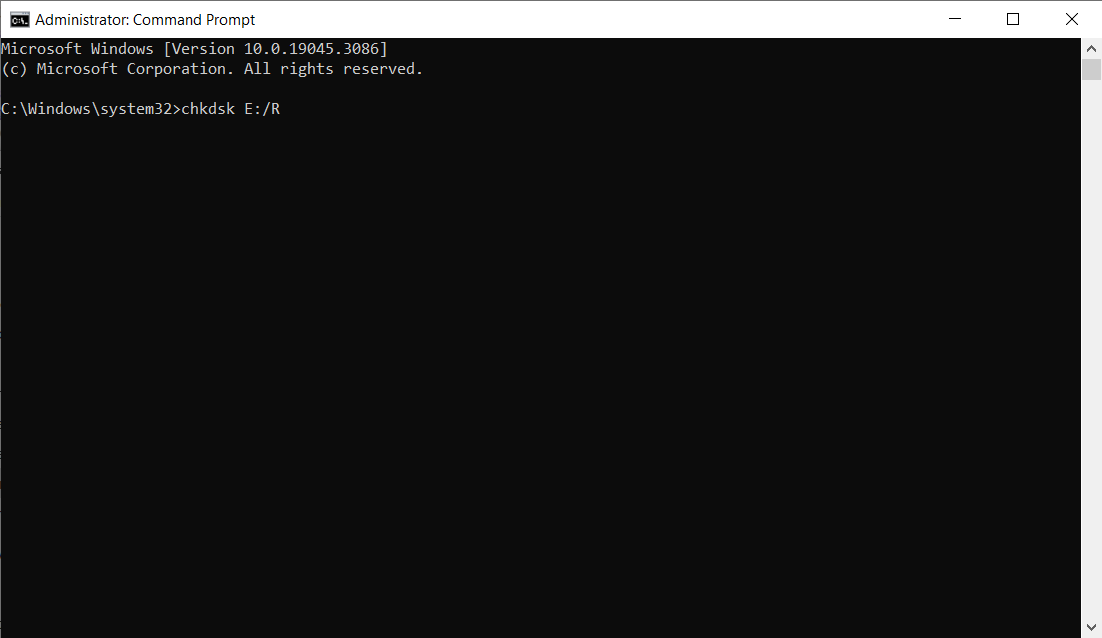
Sometimes the problem is with the SD card, which prevents you from playing stored video files. In such a case, you can use the CHKDSK command to scan and repair disk errors, fix corrupted file systems, and restore lost data structures. All you have to do is:
- Firstly, connect the SD card to your computer.
- Press Windows + R keys and type CMD in the Run prompt, then hit Enter.
- Now, type the command: chkdsk X: /f in the Command Prompt window (replace X with your SD card letter).
- Press Enter and let Windows scan and fix the errors.
- After completion, check if your videos are accessible.
Method 04: Repair Videos Using Video Repair Software
If your videos are severely corrupted or the above methods fail to fix them, try third-party video repair software like Stellar Repair for Video. This all-in-one video repair tool supports repairing video files damaged or corrupted due to sudden power loss, interrupted transfers, faulty SD cards, bad sectors, or incomplete file saving. The software supports repairing corrupted video files of various file formats like MP4, MOV, AVI, MKV, and more.
The Stellar Repair for Video tool offers preview functionality, which allows you to preview the repaired video files before saving them on your device. The software is available in multiple versions, varying in features and process. This tool is compatible with both Windows and macOS systems.
To repair your corrupted videos using this tool, you have to follow the below steps:
Step 1: Visit the official Stellar website to download and install the Stellar Repair for Video software on your system.
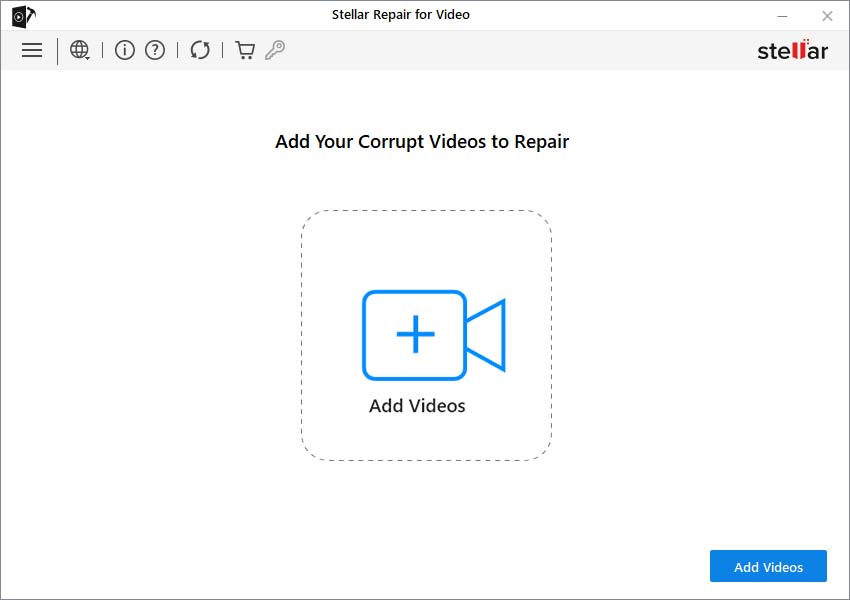
Step 2: Launch the software and from the homepage, click Add Videos and upload the file you need to repair.
Step 3: After adding the files, click ‘Repair’ to initiate the repair process. Wait till the software analyses and fixes issues like header corruption, synchronisation problems, or missing data.
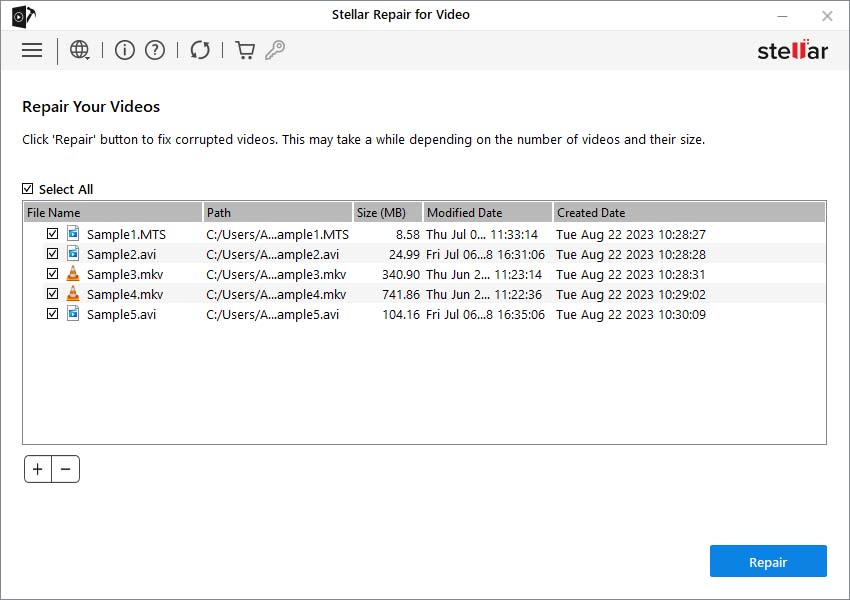
Step 4: Once the repair process is complete, click ‘Save Repaired Files’ to save repaired videos to a safe location on your computer or an external drive.
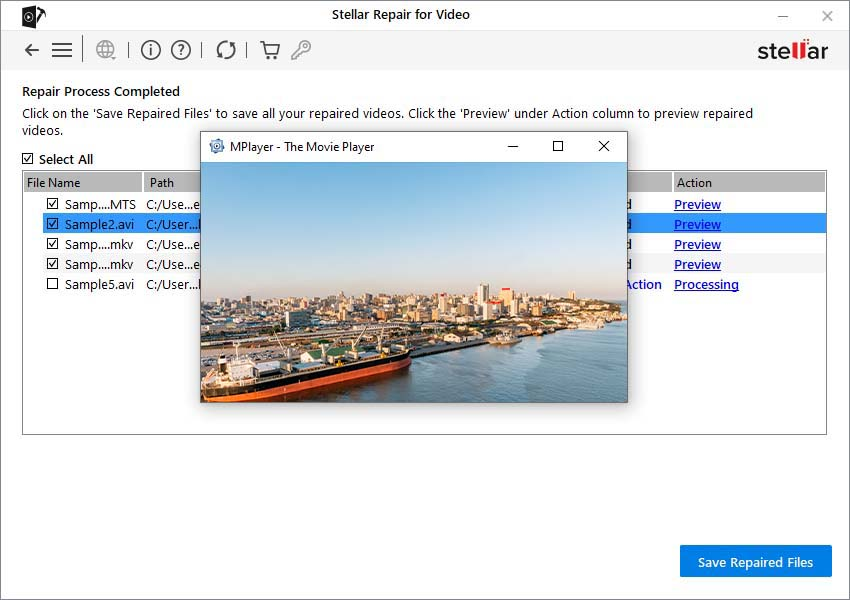
That’s it! After completion of the above steps, check if your corrupted videos are now playable.
Additional Tip: How to Prevent MP4 Video Corruption?
Once your videos are repaired, it’s important to apply adequate preventive measures to avoid such corruption issues in the future. These tips include:
- Safely Eject SD Cards: Always properly remove the SD card from your device using the Safe Ejection option.
- Keep Your PC Changes: Avoid file saving when your computer is not connected to a stable power source, as power interruptions can cause incomplete files.
- Create Backups: Perform regular backups of your important photos and videos to cloud storage or external drives.
- Install Antivirus Programs: As video corruption may arise due to virus or malware attacks, install a reliable antivirus tool to avoid such issues.
Final Thoughts
Sudden video corruption can be a painful situation, especially if your video holds precious moments. Irrespective of the exact reason for your video corruption, the aforementioned video repair methods can help you easily fix your damaged videos. First, stop using the SD card to avoid overwriting data and then go with the aforementioned methods one by one to repair and restore your original video file. If the issue is severe, use third-party video repair software like Stellar Repair for Video to fix it. By following these steps carefully, you can often restore your valuable video files and protect them for years to come.